Google Tag Manager (GTM) Guide: How to Track Events, Conversions & User Behavior Without Coding
- By admin
- Aug 19, 2026

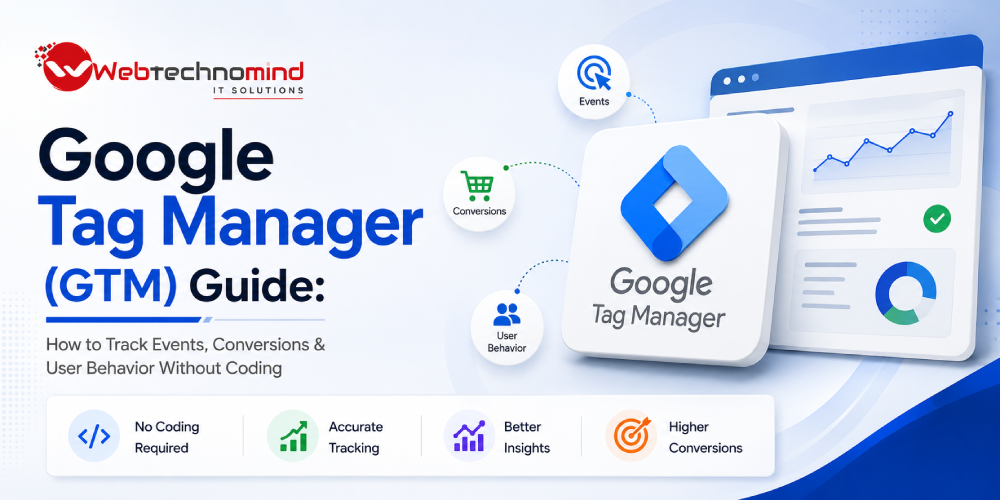







Modern websites often use multiple tracking and marketing technologies. Businesses may need to measure website visits, button clicks, form submissions, purchases, advertising conversions, remarketing audiences, and other user interactions.
Managing all these tracking codes directly inside website files can become complicated, especially when marketing teams need to make frequent changes.
Google Tag Manager (GTM) provides a solution.
GTM allows businesses to manage tracking tags through a centralized interface instead of manually adding separate tracking scripts to the website every time a new measurement requirement appears.
In this Google Tag Manager guide, you’ll learn what GTM is, how it works, how to track events and conversions, and how to measure user behavior without repeatedly editing website code.
Google Tag Manager (GTM) is a tag management system that allows website owners and marketers to deploy and manage tracking tags from one centralized platform.
A “tag” is essentially a piece of code or tracking configuration that performs a specific function.
Examples include tags for:
Instead of placing every tracking script directly into your website’s source code, GTM can manage many of these implementations from its interface.
GTM is often described as a “no-code” tracking solution, but that description needs some clarification.
Basic tracking implementations can often be configured without writing custom code.
For example, you can create triggers for:
However, more advanced implementations may require JavaScript, data layers, custom HTML, or developer assistance.
Therefore, GTM is better described as a low-code tracking and tag management platform.
GTM operates through three primary components:
Tags define what should happen.
For example:
Triggers define when the tag should fire.
Examples:
Variables provide additional information that tags and triggers can use.
Examples include:
Together:
Tag + Trigger + Variables = Tracking Implementation
Create a Google Tag Manager account and configure a container for your website.
The container stores the tags, triggers, and variables associated with your website.
GTM provides installation instructions for placing the container code on your website.
This initial implementation usually requires access to your website or CMS.
Once the container is installed correctly, future tracking changes can often be managed through the GTM interface.
Inside GTM, you can create and manage:
Use clear naming conventions from the beginning to keep your setup organized.
Button tracking is one of the most common GTM implementations.
For example, you may want to track clicks on:
“Get a Quote”
The basic process is:
Useful click variables may include:
These variables can help distinguish between different buttons on the website.
Form tracking is especially important for lead-generation websites.
You may want to measure:
The key is to track a successful submission, rather than simply tracking a click on the submit button.
For example, if a user clicks “Submit” but the form contains validation errors, counting that click as a lead would create inaccurate data.
Where possible, use a reliable success event, confirmation state, thank-you page, or data layer event.
GTM can be used to send custom events to Google Analytics.
For example, you could create events such as:
The exact event structure should be planned around your analytics measurement strategy.
Avoid creating hundreds of unnecessary events. Track interactions that provide meaningful business insights.
GTM can also help implement Google Ads conversion tracking.
For example, you can create a conversion tag that fires when a user successfully completes a lead form.
The workflow can be:
User clicks advertisement → Visits website → Completes form → GTM trigger fires → Conversion recorded
This helps advertisers connect website activity with advertising performance.
Accurate conversion tracking is critical because advertising platforms use conversion signals to evaluate and optimize campaigns.
GTM can help businesses understand how users interact with important website elements.
Common behaviors to track include:
For example, scroll tracking can help identify whether visitors reach important sections of a long landing page.
However, behavioral tracking should always support a specific business or optimization question.
The data layer is one of the most powerful concepts in Google Tag Manager.
It provides structured information that can be passed from a website to GTM.
For example, an e-commerce website might send information such as:
This information can then be used by tags and analytics platforms.
The data layer becomes particularly important for advanced e-commerce tracking and complex websites.
Before publishing tracking changes, use GTM’s preview and debugging functionality.
Testing should verify:
Always test important conversions before publishing a container version.
GTM uses a version-based publishing system.
When changes are made, they remain in the workspace until you submit and publish them.
This creates a useful workflow:
Create → Test → Submit → Publish → Monitor
Document major changes so your team can understand why a tag was added or modified.
Avoid these common GTM problems:
Multiple tags tracking the same event can produce duplicate data.
A button click does not always represent a successful conversion.
Names such as “Tag 1” and “Trigger New” become difficult to manage later.
Use descriptive names such as:
GA4 – Lead Form Submit
Always use preview and debugging tools before publishing important tracking changes.
More tracking does not necessarily mean better analytics.
Track meaningful interactions.
Complex websites often require structured data for reliable tracking.
Follow these practices for a cleaner GTM setup:
Also ensure tracking implementations comply with applicable privacy requirements and your organization’s data policies.
Google Tag Manager makes website tracking more flexible and manageable by allowing businesses to control many tracking implementations from a centralized platform.
Instead of relying on developers for every small tracking change, marketing and analytics teams can often configure standard events, conversions, and behavioral measurements through GTM.
However, successful tracking requires more than installing tags. You need a clear measurement strategy, accurate triggers, reliable events, proper testing, and consistent documentation.
When used correctly, GTM can become the foundation of a powerful analytics system that helps businesses understand what users do, which marketing activities generate results, and where the customer journey can be improved.
What is Google Tag Manager used for?
Google Tag Manager is used to manage tracking tags and marketing scripts for websites and applications. It can help configure analytics events, advertising conversions, remarketing tags, and other tracking implementations.
Can I use Google Tag Manager without coding?
Yes. Many basic tracking tasks can be configured without writing code. Advanced implementations may require JavaScript, custom HTML, or developer support.
What is the difference between Google Analytics and Google Tag Manager?
Google Analytics collects and analyzes data, while Google Tag Manager helps manage and deploy tracking tags that can send data to analytics and advertising platforms.
Can GTM track form submissions?
Yes. GTM can be configured to track successful form submissions using appropriate triggers, events, confirmation pages, or data layer implementations.
Can Google Tag Manager track Google Ads conversions?
Yes. GTM can be used to implement Google Ads conversion tracking and fire conversion tags when users complete defined actions.
Is Google Tag Manager good for SEO?
GTM is primarily a tracking and tag management platform rather than an SEO tool. However, accurate analytics and conversion tracking can help SEO teams understand traffic quality, engagement, and business outcomes.
How often should I audit Google Tag Manager?
Review your GTM container periodically and after major website changes. Remove unused tags, check for duplicates, verify important conversions, and ensure tracking remains accurate.

Google Display Ads can help businesses reach potential customers across websites, apps, video platforms, and other digital environments....
Understanding how visitors interact with your website is essential for making better marketing and business decisions. While website...
Running Google Ads without accurate conversion tracking is like running a business without knowing which sales activities generate...

Google Search Ads remain one of the most effective ways for businesses to reach people who are actively...